How to Activate eSIM on iPhone
Last updated on August, 8, 2025


Last updated on August, 8, 2025
 |
Customers who are planning to visit Hong Kong and Taiwan, please click here to complete real-name registration. |
|
|
Make sure you have an eSIM compatible and network-unlocked device. |
|
|
Be connected to a strong WiFi to activate an eSIM successfully. |
|
|
Be noted that the validity begins once you install the eSIM. |
|
|
Please do not remove the eSIM without consulting CS Team. |
Go to Settings
| ▸ | Select [Cellular/Mobile Service] |
| ▸ | Tap [Add eSIM/Data Plan] |
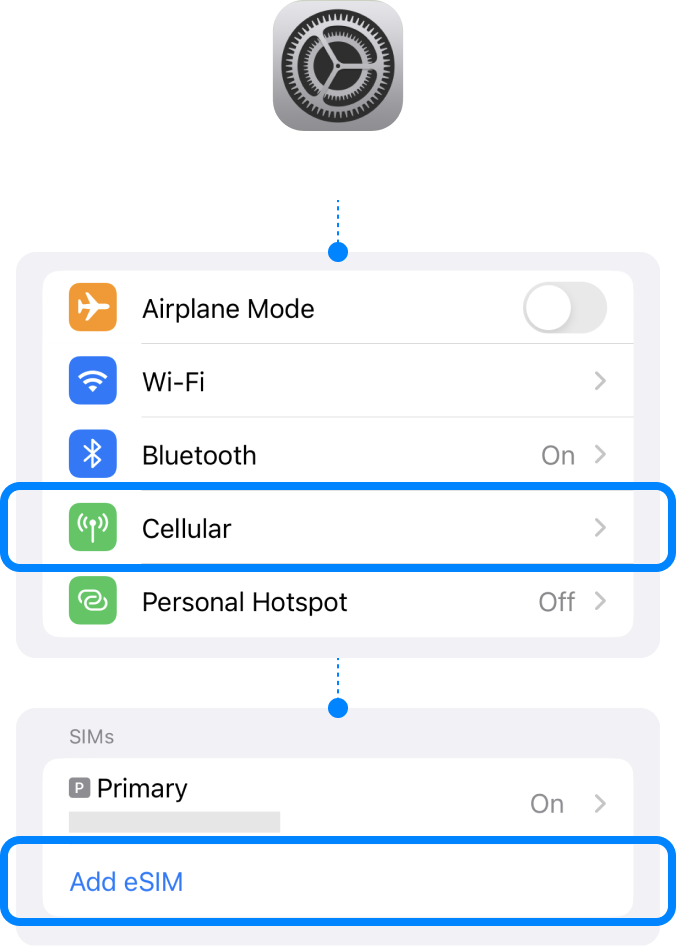
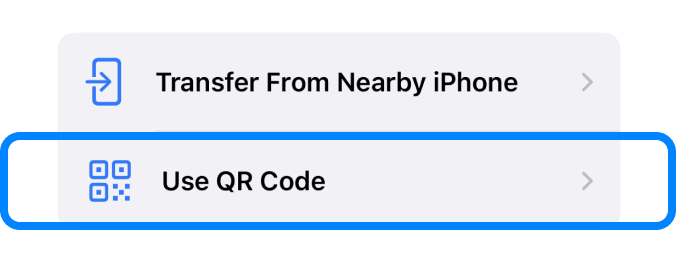
! Be connected to a strong WiFi to activate an eSIM successfully.
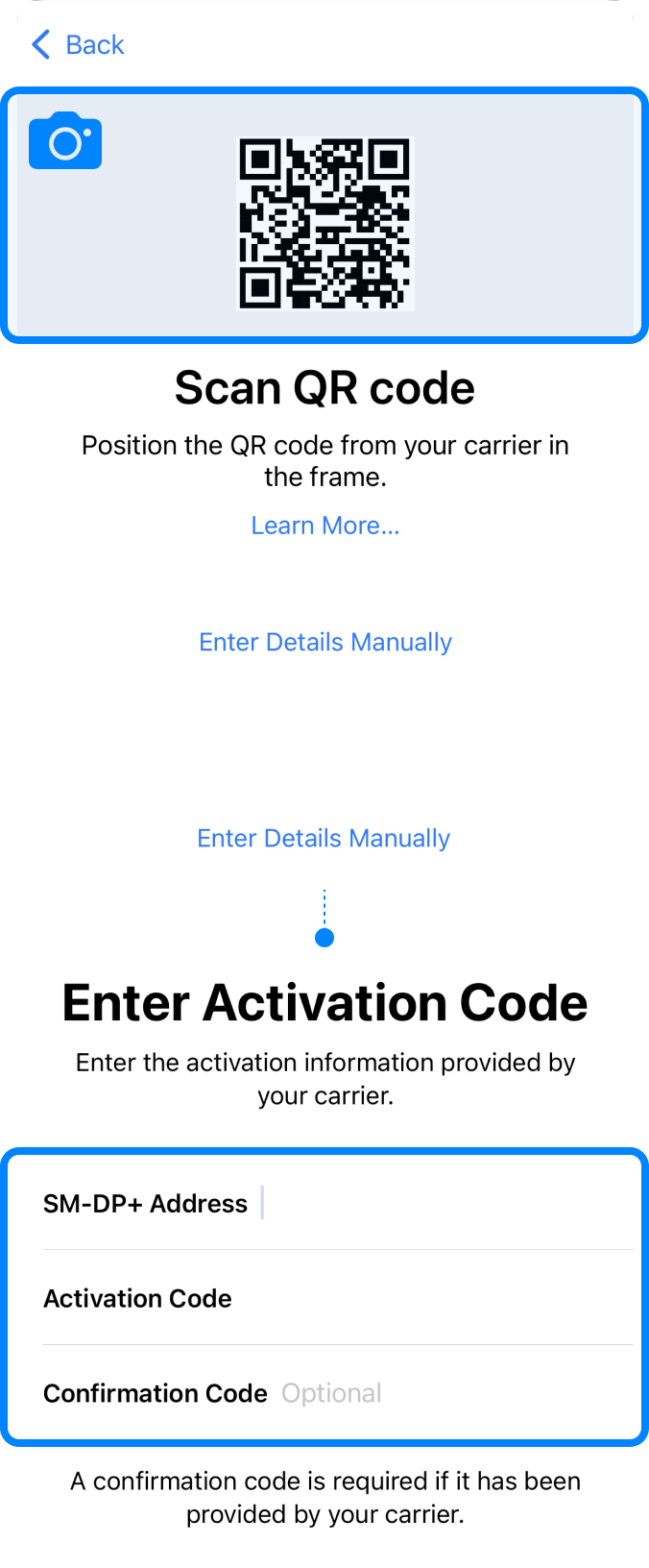
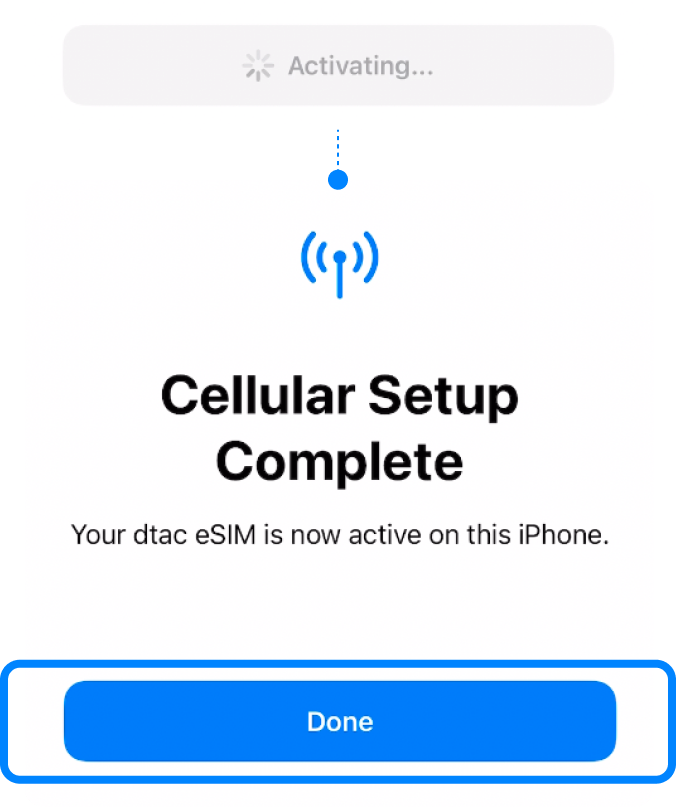
Go to Settings
| ▸ | Select [Cellular/Mobile Service] Select our eSIM under the SIMs section. |
| ▸ | Tap [Cellular Plan Label] Type in the ‘Custom Label’, e.g. {Destination} – eSIM World. |
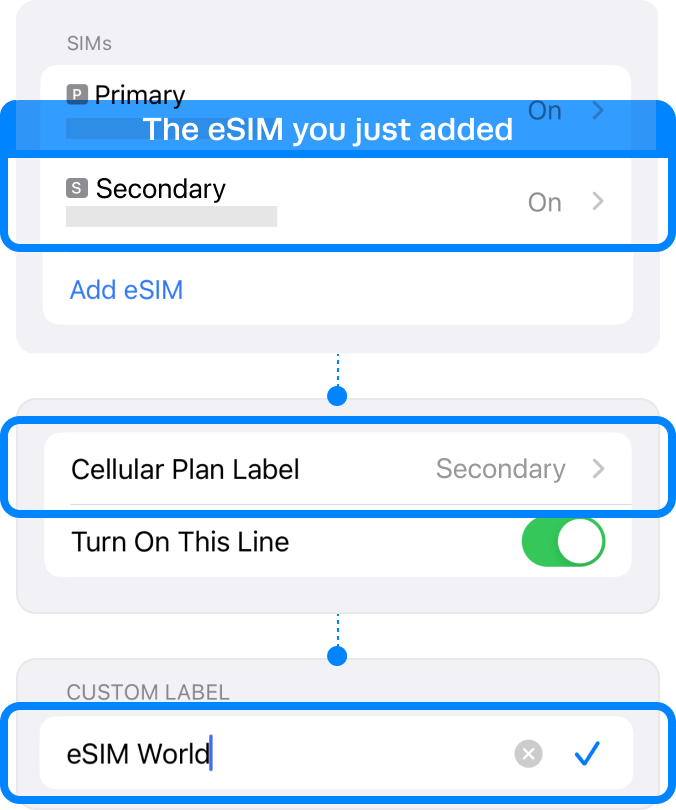

Go to Settings
| ▸ | Select [Cellular/Mobile Service] Select our eSIM under the SIMs section. |
| ▸ | Toggle on ‘Turn on this Line’ |
| ▸ | Toggle on ‘Data Roaming’ For your domestic SIM, please toggle off ‘Data Roaming’. |
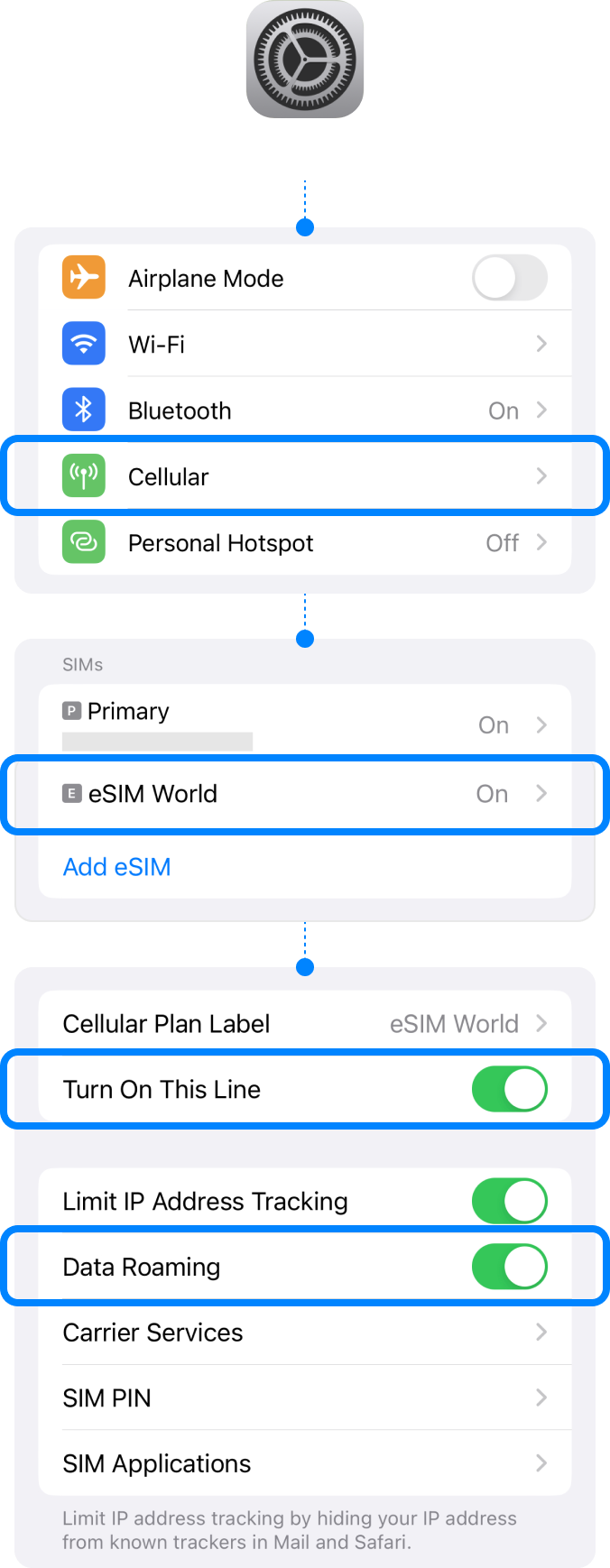
Go to Settings
| ▸ | Select [Cellular/Mobile Service] |
| ▸ | Tap [Cellular Data] Select your eSIM. |
Please toggle off ‘Allow Cellular Data Switching’ to prevent unnecessary roaming charges from your domestic carrier.
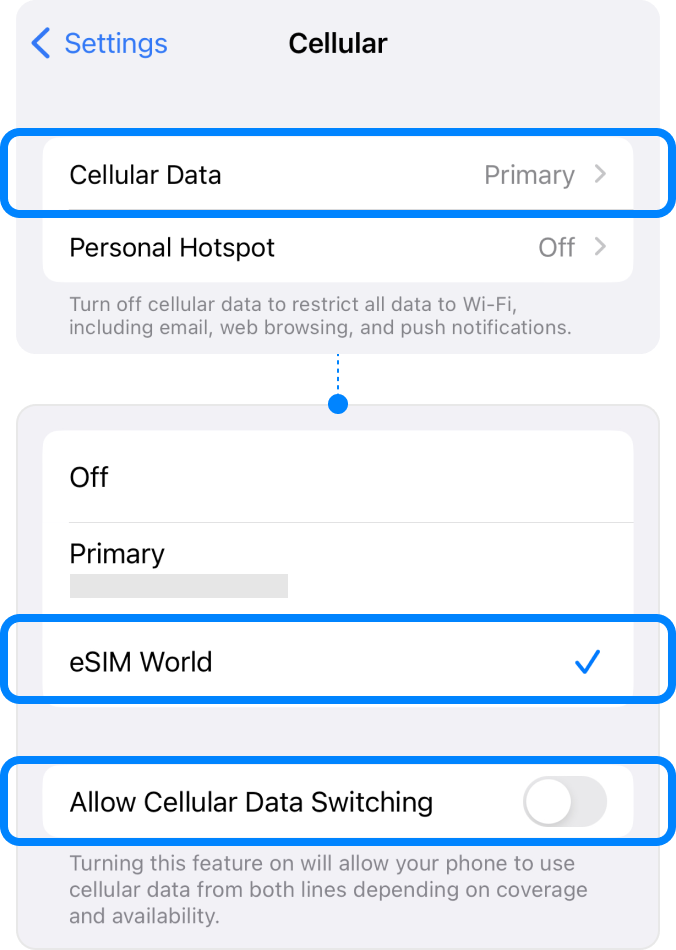
Go to Settings
| ▸ | Select [Cellular/Mobile Service] Under ‘SIMs’, choose your eSIM. |
| ▸ | Choose [Network selection] To perform a manual search. |
| ▸ | Toggle off ‘Automatic’ |
When the list of networks is displayed, Select the name of the telecom in the country in which you are located.
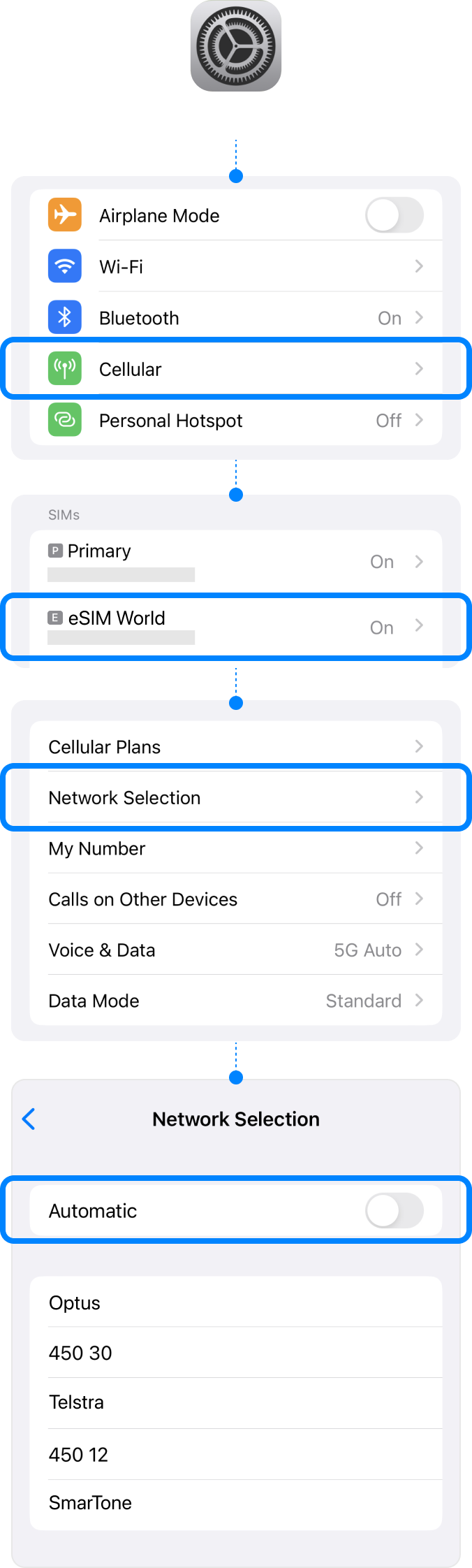
Go to Settings
| ▸ | Select [Cellular/Mobile Service] Under ‘SIMs’, choose your eSIM. |
| ▸ | Go to [Cellular Data Network] Type the APN information. |
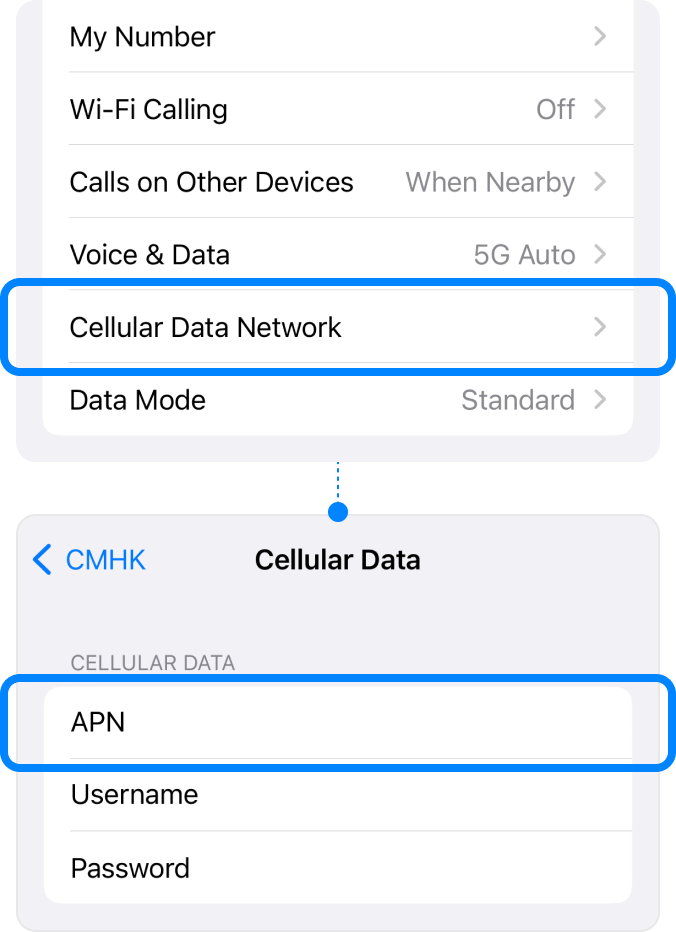
Destination
Select the destination for real-name
registration.

Contact information
Provide either your email address or
phone number.
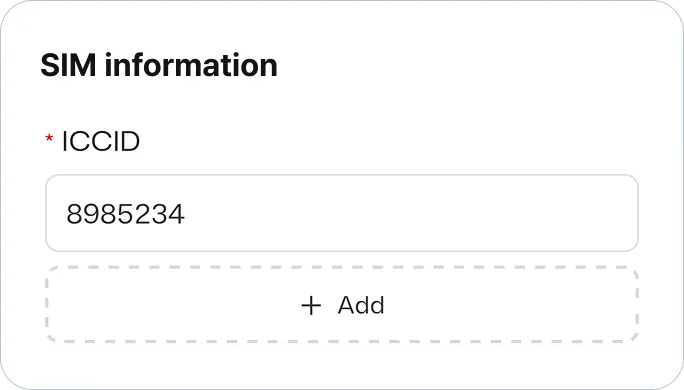
ICCID
Put ICCID of the eSIM for your destination, Taiwan or Hong Kong.
Find ICCID in the email with the QR code.
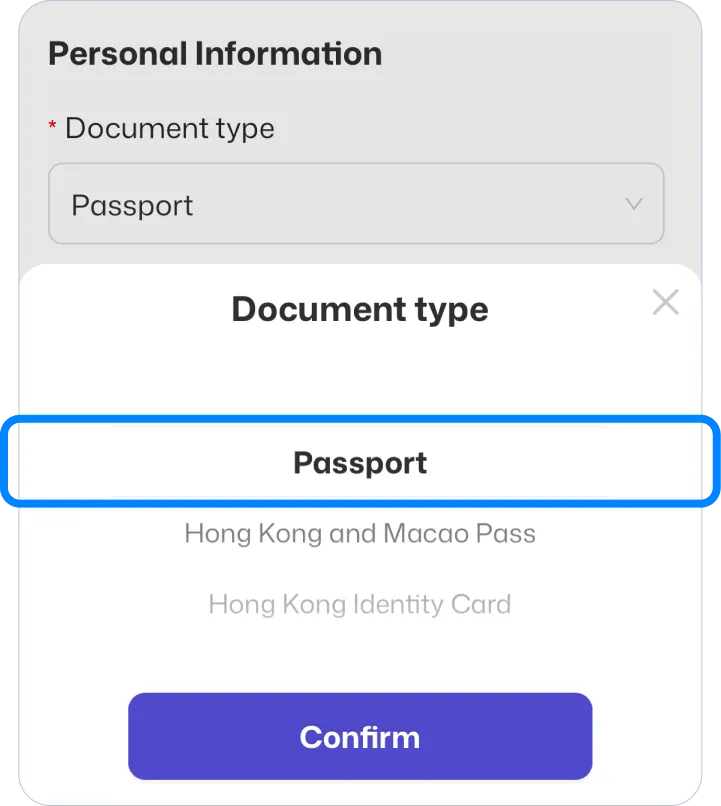
Document Type
Select “Passport” and click confirm.
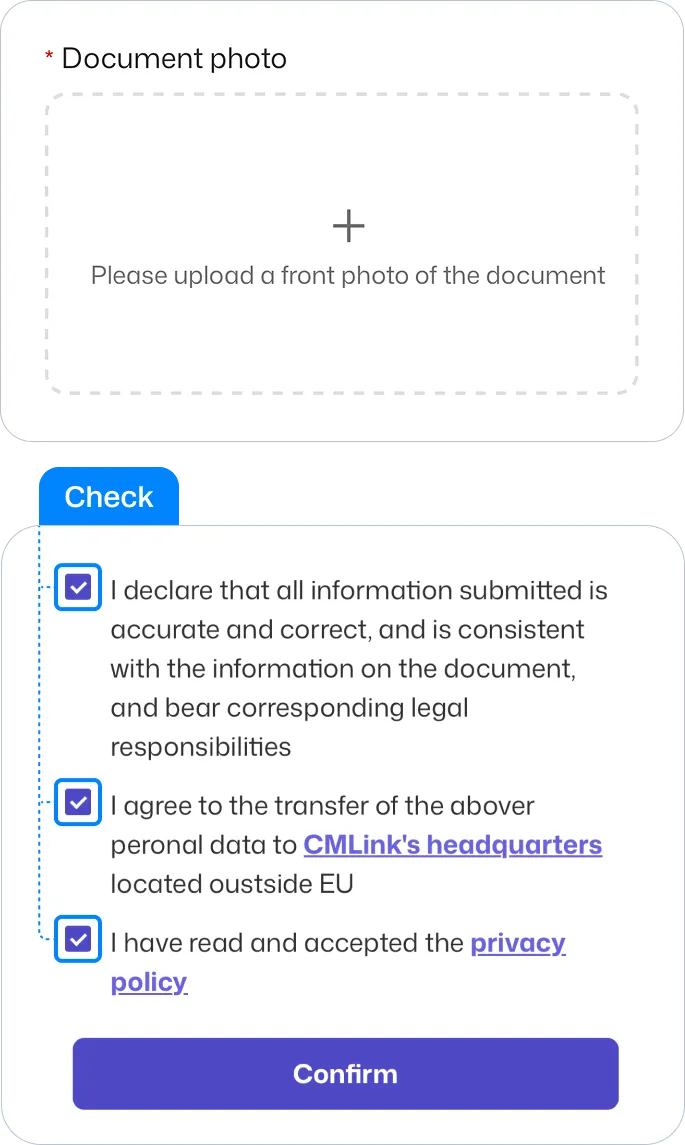
Document Image
Upload picture of your passport.
Check the box and click confirm.
✓ Compatible device
iPhone Air
iPhone 17, 17 Pro, 17 Pro Max
iPhone 16, 16 Plus, 16 Pro, 16 Pro Max
iPhone 15, 15 Plus, 15 Pro, 15 Pro Max
iPhone 14, 14 Plus, 14 Pro, 14 Pro Max
iPhone SE3 (2022)
iPhone 13, 13 Pro, 13 Pro Max, 13 Mini
iPhone 12, 12 Pro, 12 Pro Max, 12 Mini
iPhone 11, 11 Pro, 11 Pro Max
iPhone SE2 (2020)
iPhone XR, iPhone XS, XS Max
(Recommended iOS version: iOS 13.3 or later)
! Incompatible Device
iPhone purchased from mainland China
iPhone purchased from Hong Kong and Macao (except for iPhone 13 mini, iPhone 12 mini, iPhone SE 2020, and iPhone XS)
✓ Compatible device
Galaxy S26 5G, S26 Ultra 5G, S26+ 5G
Galaxy S25 5G, S25 Ultra 5G, S25+ 5G
Galaxy S24 5G, S24 Ultra 5G, S24+ 5G, S24 FE
Galaxy S23 5G, S23 Ultra 5G, S23+ 5G
Galaxy S22 5G, S22 Ultra 5G, S22+ 5G
Galaxy S21 5G, S21 Ultra 5G, S21+ 5G
Galaxy S20, S20+, S20 Ultra 5G
Galaxy Note 20, Note 20 Ultra, Note 20 Ultra 5G
Galaxy Note 20+, Note 20 FE, Note 20 FE 5G
Galaxy Fold, Z Fold 2, Z Fold 3, Z Fold 4 5G, Z Fold 5, Z Fold 6, Z Fold 7
Galaxy Z Flip, Z Flip 3 5G, Z Flip 4 5G, Z Flip 5, Z Flip 6, Z Flip 7
Galaxy A23 5G, A35 5G, A54 5G, A55 5G
! Incompatible Device
All Samsung S20 FE/S21 FE models
S20/S21 and Galaxy Z Flip 5G from USA
Note 20 Ultra and Galaxy Z Fold 2 from USA and Hong Kong
✓ Compatible device
Pixel 9, 9Pro, 9Pro XL
Pixel 8, 8Pro
Pixel 7, 7Pro
Pixel 6, 6a, 6Pro
Pixel 5, 5a
Pixel 4, 4a, 4XL
Pixel 3, 3XL
Pixel 3a, 3aXL
! Incompatible Device
Pixel 3 models manufactured from Australia, Taiwan, and Japan
Pixel 3 models bought from US or Canadian carriers other than Sprint and Google Fi
Pixel 3a models bought in South East Asia and with Verizon service
If you have any questions or concerns, please contact us at [email protected].